
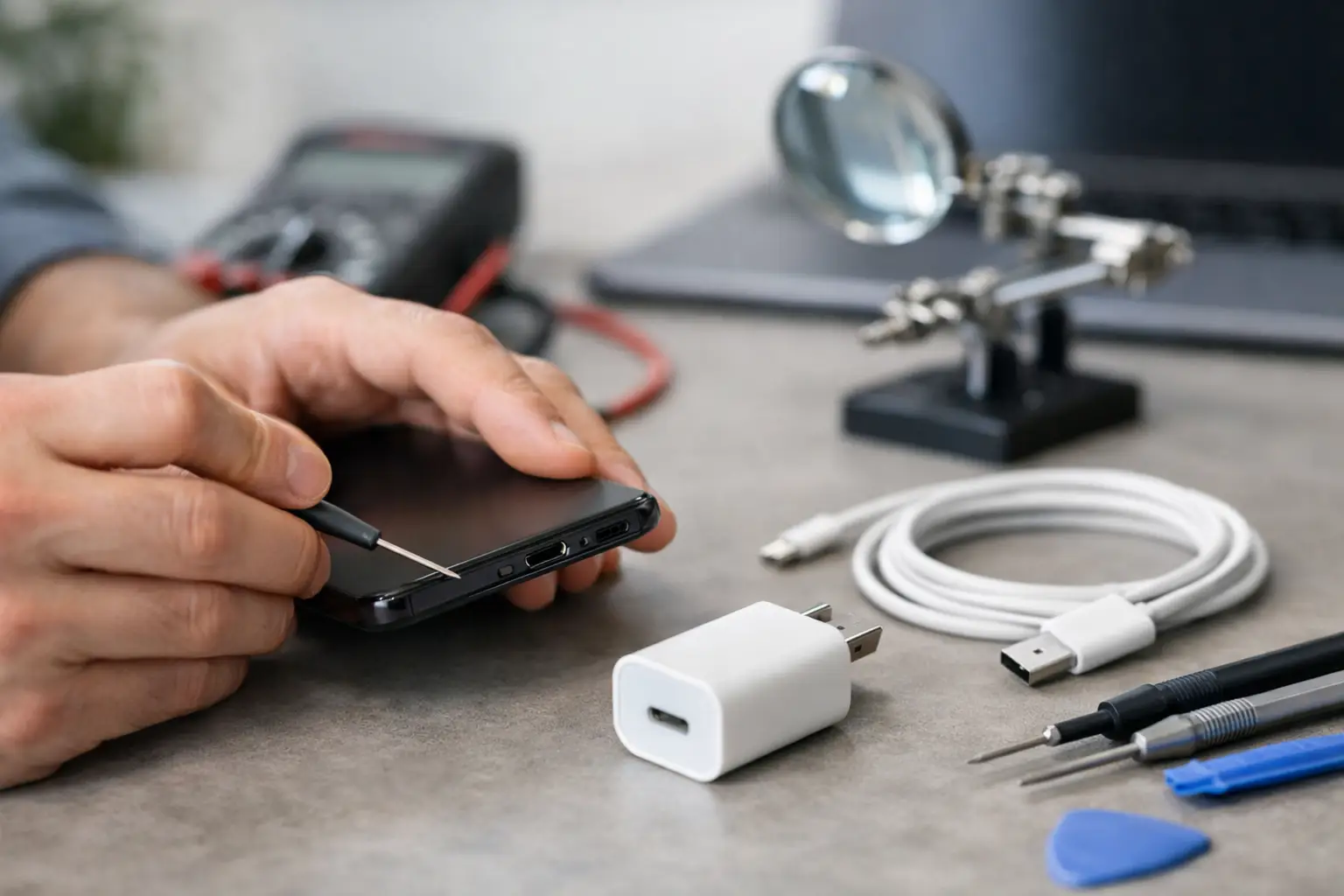
A phone that only charges at a certain angle is not being “picky.” It is usually telling you something is wrong with the cable, the charging port, the battery, or the device’s charging system. Knowing how to troubleshoot charging port issues can save you time and prevent a small problem from turning into a dead device right when you need it for work, school, or a ride home.
Start with the simple checks, but do not force a cable into a port or dig around with metal tools. Charging ports contain small, delicate pins. A rushed DIY fix can bend those pins, create a short, or turn a quick cleaning into a board-level repair.
Start by Rule Out the Charger
Before assuming the port is damaged, test the charging setup. A worn cable can look perfectly fine on the outside while its internal wiring has failed. Charging blocks can also weaken, especially low-quality adapters that run hot or have been dropped.
Try a different cable and power adapter that you know works. Plug it directly into a wall outlet rather than a loose power strip, vehicle USB port, or computer. If your device begins charging normally with the replacement setup, the port may be fine. Replace the failed accessory and avoid using it again.
Pay attention to the result. If the phone charges slowly with every charger, charges only when the cable is held in place, or repeatedly connects and disconnects, the issue is more likely inside the device.
Check for a Charging Warning
Many iPhones, Samsung phones, tablets, and laptops will display a moisture, debris, unsupported accessory, or temperature warning. Do not ignore it. A moisture warning is there to prevent electrical damage while power is flowing through the port.
If the device says liquid has been detected, unplug it immediately. Turn it off if possible and let it air-dry in a cool, dry place with the port facing down. Do not charge it, use a hair dryer, or put it in rice. Heat can damage internal components, and rice dust can make the port dirtier. If the warning remains after the device has had time to dry, it needs a proper diagnostic.
How to Troubleshoot Charging Port Issues Safely
The most common physical port problem is compacted pocket lint. Every time you plug in a cable, it can push fabric fibers, dust, and debris farther into the bottom of the port. Eventually, the cable cannot seat fully, even though it appears connected.
First, power the device off. Use a bright light to look into the port. You may see a gray or black layer of lint packed into the bottom. The cable should sit firmly and nearly flush with the device. If it feels loose, falls out easily, or leaves an unusual gap, debris may be the reason.
Use a dry, non-metal tool with a soft edge, such as a plastic pick designed for electronics. Work gently around the edges and pull debris outward. Never scrape aggressively against the center pins. Avoid paper clips, sewing needles, tweezers, knives, and anything wet. Those tools can scratch contacts or bend pins that are difficult and costly to replace.
After cleaning, test the port with a known-good cable. If the connection is solid and charging is consistent, you likely solved the problem. If the cable still wiggles, only works at one angle, or does not charge at all, stop cleaning. There may be a damaged pin, broken port housing, or internal connection issue.
Signs the Port Needs Professional Repair
A dirty port is a common fix. A physically damaged port needs more than cleaning. The difference matters because continuing to force a cable can cause additional damage to the port or charging circuit.
Watch for these signs:
- The cable only works when bent, twisted, or held at a specific angle.
- The connector feels loose even after debris has been removed.
- You can see bent, missing, blackened, or corroded pins inside the port.
- The device gets unusually hot while charging or stops charging after a few minutes.
- Multiple known-good cables and adapters fail on the same device.
- The device was dropped, exposed to water, or had a charger break off inside the port.
These symptoms can point to a damaged charging port, but they can also indicate battery trouble, corrosion, a failed charging chip, or board damage. That is why a real diagnostic matters. Replacing a port when the battery or board is actually at fault wastes money and does not fix the problem.
What About Wireless Charging?
Wireless charging can be a useful test for compatible phones. If your phone charges wirelessly but not through a cable, the port or wired charging circuit becomes more likely. It is not a guarantee, though. A phone can have both battery and charging-port issues at the same time.
Wireless charging is also not a long-term workaround for every device. It may be slower, generate more heat, and leave you unable to transfer data or connect accessories through the port. If your phone depends on USB-C or Lightning for work, backup, CarPlay, Android Auto, or headphones, repairing the port is usually the better answer.
Do Not Confuse a Port Problem With a Battery Problem
A weak battery and a bad port can create similar symptoms. Your phone may show a charging symbol but stay at the same percentage, shut down shortly after being unplugged, or take hours to gain a small amount of charge.
If the cable connection feels secure and the device charges consistently but drains fast, the battery may be worn out. This is especially common on devices that are a few years old, get hot during normal use, or have already been through hundreds of charge cycles. On the other hand, if the charging icon flickers when the cable moves, focus on the port first.
Software can occasionally interfere, too. Restart the device and check whether it recognizes the charger after powering back on. For laptops, confirm the correct wattage charger is being used. A low-watt USB-C charger may power a laptop slowly or not at all, even if it charges a phone without trouble.
When Water Damage Is Part of the Story
Charging trouble after a spill, rain exposure, a bathroom drop, or high humidity deserves extra caution. Corrosion can form inside a charging port or on the board even after the outside looks dry. It may start as intermittent charging, then worsen days later.
Do not keep plugging in chargers to “see if it works.” Electricity and moisture are a bad combination. Disconnect power, turn the device off, and get it inspected. Fast action gives technicians a better chance of removing corrosion before it spreads to other components.
A Faster Path When the Port Still Will Not Charge
If you have tested a known-good charger, checked the outlet, safely removed visible debris, and restarted the device, you have done the useful at-home troubleshooting. The next step is a professional diagnosis, especially if the device is your daily phone, tablet, laptop, or game console controller.
At Reboot Hub, certified technicians diagnose charging failures and handle port repairs, battery replacements, liquid-damage checks, and advanced board-level issues. For customers in Warner Robins and Middle Georgia, many repairs can be completed the same day, often with a 30-minute goal when the repair and parts allow. You get a clear answer before moving forward, fair pricing backed by a Low Price Guarantee, and warranty protection that does not leave you guessing.
A charging port problem does not always mean you need a new device. Treat the connection gently, test the basics once, and get help before repeated plugging, heat, or moisture turns a repairable issue into a bigger one.