
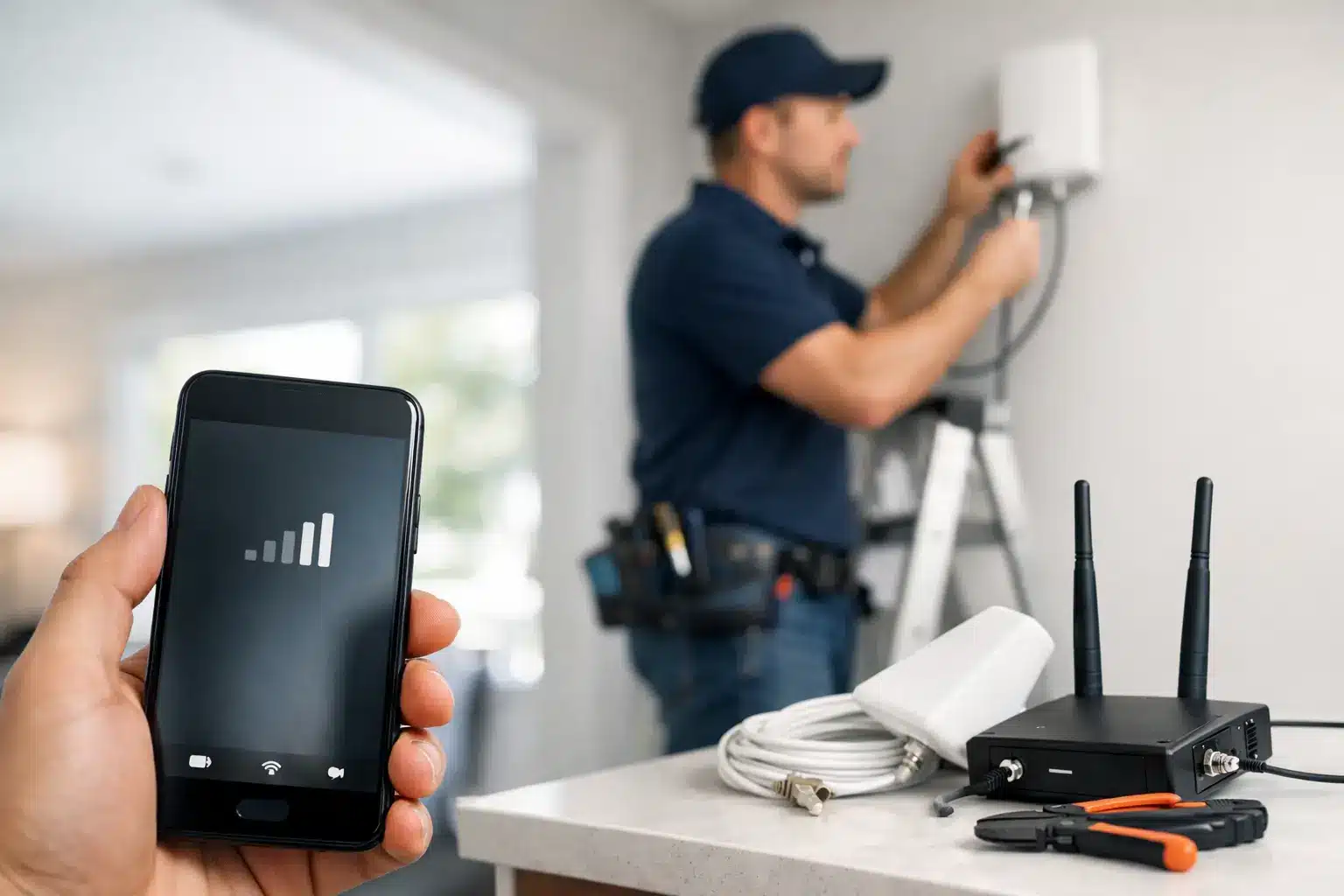
A phone that suddenly shows SOS, No Service, or one weak bar can stop your day fast. This guide to phone signal repair helps you separate a temporary carrier issue from a device problem, so you do not waste time replacing a phone that may be repairable. The right next step depends on whether the problem follows your location, your SIM, or the phone itself.
Start by identifying the type of signal problem
“Bad signal” can mean several different things. Calls may drop while texts still work. Mobile data may crawl even though the phone displays several bars. You may see No Service everywhere, or only lose connection in one building or neighborhood. Those details matter because they point to different causes.
If everyone on the same carrier around you has poor service, the phone is probably not the issue. A local tower outage, network congestion, severe weather, or a rural coverage gap can all affect service. Check whether another person on your carrier has the same problem before assuming you need a repair.
If your phone works normally in most places but fails in one spot, coverage is the likely answer. Thick concrete, metal roofing, low-lying areas, and large commercial buildings can weaken cellular signal. Repair will not change a carrier’s coverage map.
A device issue is more likely when your phone has no service in multiple locations, cannot connect after a drop or water exposure, or has weak signal while another phone on the same carrier works right beside it.
Quick checks before phone signal repair
Do the simple checks first. They take minutes and can rule out a settings glitch without risking your photos, apps, or data.
Turn Airplane Mode on for about 15 seconds, then turn it off. This forces the phone to look for a fresh network connection. Next, restart the phone completely. A restart clears many temporary radio and software errors that can leave a device stuck searching for service.
Then confirm that Cellular Data is enabled and that your phone is not locked into the wrong network mode. If you recently traveled, changed carriers, installed an update, or switched to an eSIM, check that the correct line is active. On dual-SIM phones, it is easy for the wrong line to be selected for data or calls.
Carrier settings updates can also help. On many iPhones, opening Settings, General, and About may prompt an available carrier update. Android menus vary by manufacturer, but software updates and network settings are usually found under Settings, Connections, Network, or System.
Resetting network settings is worth trying if the issue started after a software change and the phone has not been physically damaged. This removes saved Wi-Fi networks, Bluetooth pairings, and certain cellular settings, so have Wi-Fi passwords available. It should not erase your photos or apps.
Check the SIM card or eSIM connection
A damaged, loose, or failing SIM can look exactly like a signal problem. If your phone uses a physical SIM card, power it off, remove the tray, and inspect the card for dirt, corrosion, chips, or obvious damage. Reinsert it carefully and make sure the tray sits flush.
Do not scrape the SIM contacts or force the tray. A bent tray, damaged gasket, or SIM that will not seat properly may need professional attention. If possible, test your SIM in another compatible phone or test a known-working SIM in yours. That comparison can quickly show whether the issue is with your account, SIM, or handset.
eSIM users have a different path. Confirm the cellular plan is still turned on and contact the carrier if the phone reports that no SIM is available. In some cases, the carrier can refresh or reissue the eSIM activation. Avoid deleting an eSIM profile unless your carrier has confirmed how you will reactivate it.
When the phone itself is likely the problem
Signal hardware is more vulnerable than it looks. A phone can still turn on, run apps, and connect to Wi-Fi while its cellular antenna system is damaged. Modern phones use small antenna lines, coax cables, connectors, shields, and board-level components that work together to send and receive cellular, GPS, Bluetooth, and Wi-Fi signals.
A hard drop is a common trigger. The screen may look fine, but impact can loosen an antenna cable, crack a board connection, or damage the charging-port assembly on models where antenna components are built into the lower section of the phone. A bent frame can create similar trouble by changing how internal contacts meet.
Water exposure is another major warning sign. A phone does not need to be submerged to develop corrosion. Humidity, rain, spilled drinks, or a wet pocket can affect connectors and board components over time. The phone may work for days before it starts searching for service, losing GPS, or dropping calls.
Be especially suspicious of hardware damage when the phone has several connectivity issues at once. No cellular service plus unreliable Wi-Fi, Bluetooth that will not stay connected, weak GPS, or a grayed-out cellular option can point to a deeper internal fault. Those symptoms require diagnosis, not repeated resets.
Common repairs for no service and weak signal
The repair depends on the phone model and what failed. On some devices, a technician may find a disconnected antenna cable, a damaged SIM reader, or corrosion around a connector. Replacing the affected component can restore service without replacing the phone.
Other cases need charging-port repair because the cellular antenna path is integrated into that assembly. This is one reason a phone may develop poor reception after a charging-port issue, impact damage near the bottom edge, or exposure to moisture.
The most complex failures happen on the logic board. Board-level cellular faults can involve damaged filters, amplifiers, baseband circuits, or broken solder connections. These are not do-it-yourself repairs. They require proper diagnostics and microsoldering equipment, and the best option depends on the phone’s age, value, and condition.
There is a trade-off. A straightforward antenna or connector repair is often a sensible way to extend the life of a newer phone. A major board-level repair on an older device may still be worthwhile if the phone contains essential data or costs less than replacement. A good repair shop should explain the fault, price, and practical options before work begins.
What not to do when your phone loses service
Do not keep factory-resetting a phone that has clear water damage or started failing immediately after a drop. A reset may temporarily change behavior, but it cannot repair corrosion, a torn cable, or a damaged board. It can also make the process harder if you have not backed up important data.
Avoid heating the phone, using compressed air in the SIM tray, or opening it with online repair tools unless you know exactly what you are doing. Modern phones are tightly assembled, and one damaged flex cable, stripped screw, or torn water seal can turn a focused signal repair into a larger repair.
Do not assume a replacement screen or battery caused the issue without testing. Poor-quality parts or an improperly connected component can affect reception on some models, but carrier trouble and pre-existing board damage are also common. Diagnosis should come before blame.
When to bring it in for a diagnosis
Professional help makes sense when your phone shows No Service in multiple areas, loses signal after a drop or water exposure, cannot recognize a SIM, or has cellular problems alongside Wi-Fi, Bluetooth, or GPS issues. Bring the phone in before the damage spreads, especially after liquid exposure.
For customers in Warner Robins and Middle Georgia, Reboot Hub can inspect the device, isolate whether the fault is external, component-level, or board-level, and recommend the most cost-effective fix. Many common repairs can be completed the same day, often with a 30-minute goal, while advanced signal faults may need more detailed testing. You should get a clear answer before spending money on a repair that does not fit the phone’s value.
Before you hand over the device, write down the exact symptoms: when the issue started, whether the phone was dropped or wet, which carrier you use, and whether calls, data, GPS, Wi-Fi, and Bluetooth are affected. That information shortens diagnosis and helps the technician target the real problem.
A phone with no signal is not automatically finished. Start with the quick checks, protect your data, and pay attention to the clues your phone is giving you. Fast, accurate diagnosis is usually cheaper than guessing – and it gets you back to calls, maps, messages, and work without waiting on a replacement device.