
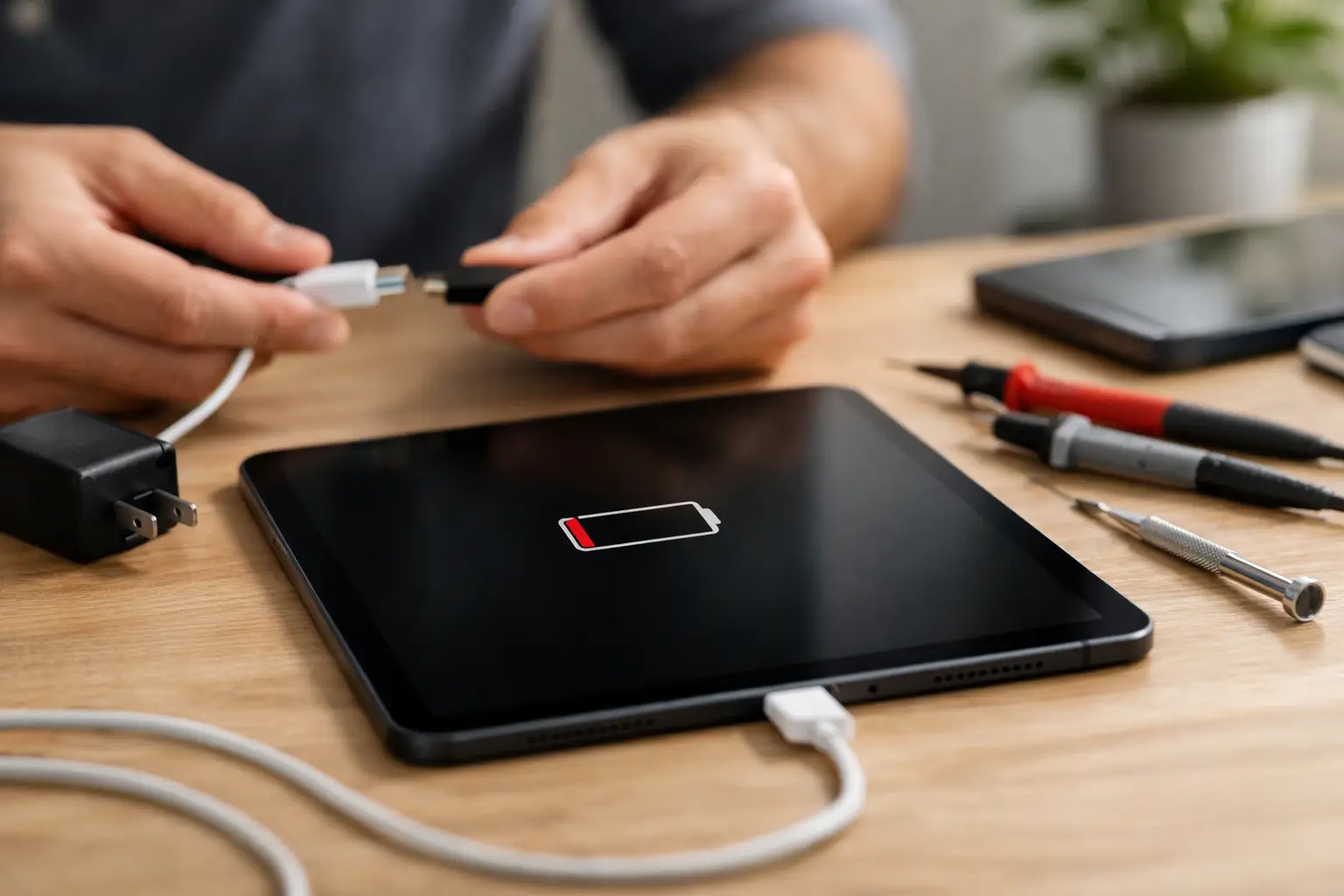
Your tablet was fine yesterday, and now it sits at 1% like it’s making a point. If you’re asking, why wont my tablet charge, the good news is that this problem is usually tied to a handful of causes – and some are simple enough to rule out in a few minutes.
A tablet that won’t charge can be dealing with a bad cable, a weak wall adapter, debris packed into the charging port, software that froze the charging process, or a battery that has finally worn out. In other cases, the issue runs deeper at the charging port or motherboard level. The key is figuring out whether you’re dealing with a quick fix or a repair before you waste money on random chargers and guesswork.
Why won’t my tablet charge all of a sudden?
When a tablet stops charging out of nowhere, people usually assume the battery is dead. Sometimes that’s true, but not as often as you’d think. Charging problems usually start with the power source or the connection between the charger and the tablet.
Cables fail constantly, especially if they stay bent in a car, wrapped too tightly in a bag, or used while plugged in. Wall adapters can also weaken over time and stop delivering the wattage your tablet needs. A charger that still works for a phone may not be strong enough for a tablet, which can make it look like nothing is happening.
Then there’s the charging port. Lint, dust, pet hair, and pocket debris can pack down inside the port until the cable can’t sit correctly. You plug it in, it feels connected, but the contacts never line up the way they should. This is one of the most common causes we see because it sneaks up on people.
Software can also be part of the problem. A frozen operating system, recent update issue, or battery management glitch can stop the charging icon from appearing or keep the device from recognizing power properly. Less often, the tablet is charging very slowly but using more power than it receives, especially if the screen stays on and multiple apps are running.
What to check before you assume the tablet is broken
Start with the basics, because they save time and money. Try a different charging cable first, then a different wall adapter, then a different outlet. Don’t swap only one piece and call it tested. A bad cable and a weak adapter can look exactly the same from the outside.
Use a charger that matches the tablet’s power needs. That matters more than people realize. A cheap replacement charger might connect, but if it delivers too little power, your tablet may charge painfully slowly or not at all. Some tablets are also picky about cable quality, especially newer USB-C models.
Next, inspect the charging port under a bright light. If you see packed debris, that can absolutely stop charging. Be careful here. Don’t jam metal into the port or force anything around. If the port looks damaged, loose, or bent, stop there. A damaged port usually needs repair, and forcing the cable can make it worse.
If the tablet still has some battery left, restart it. If it’s completely dead, leave it plugged in with a known good charger for at least 20 to 30 minutes. Some deeply drained batteries need a little time before the screen responds.
Why wont my tablet charge even with a new charger?
If you already bought a new charger and nothing changed, the problem is probably not the charger alone. This is where people start getting frustrated because they’ve already tried the obvious fix.
The next likely issue is the charging port itself. Ports wear down from repeated use, especially when the cable gets yanked, inserted at an angle, or used while someone is moving around with the device. A loose port may charge only when the cable is held a certain way. A damaged port may stop connecting altogether.
Battery failure is another strong possibility. Tablet batteries don’t last forever. Heat, heavy daily use, and years of charge cycles all wear them down. Sometimes the battery still powers the tablet for a short time but refuses to accept a proper charge. Other times it swells, shuts off at random percentages, or won’t turn on even when plugged in.
There’s also a more serious category of failure: board-level damage. If the tablet has been dropped, exposed to moisture, or charged with a poor-quality accessory, the charging circuit on the board can fail. At that point, replacing chargers and cables won’t solve anything because the tablet itself can’t process incoming power correctly.
Signs the problem is the battery, not the cable
A failing battery usually leaves clues before it quits completely. The tablet may lose charge unusually fast, shut down before reaching 0%, run hot while charging, or take forever to move up even a few percent. In some cases, the battery percentage jumps around or the device only works when plugged in.
Battery issues can be gradual or sudden. A battery that’s been declining for months can finally cross the line and stop charging normally. That’s especially common with older tablets used every day for streaming, schoolwork, work apps, or gaming.
If the back of the tablet looks lifted or the screen is separating from the frame, stop using it right away. That can point to a swollen battery, and that’s not something to ignore or keep charging at home.
Signs the charging port may be damaged
Charging ports take more abuse than most people realize. If the cable feels loose, falls out easily, or only charges when held at a specific angle, the port may be worn or broken. If you have to wiggle the connector to get a charging response, that’s another strong sign.
Sometimes the inside pin is bent. Sometimes the port has partially detached from the board. Sometimes corrosion from moisture exposure has damaged the contacts. These are repair issues, not cleaning issues.
This is where a proper diagnosis matters. Two tablets can show the exact same symptom – no charging – while needing completely different repairs. One may need a simple port replacement. The other may need microsoldering on the board. Guessing wrong can cost more in the long run.
When a tablet looks dead but is actually charging
Not every no-charge situation is a true no-charge problem. Some tablets get stuck on a black screen or battery symbol and give the impression they’re not charging at all. Others are charging so slowly that the battery percentage barely moves.
This happens a lot with low-output chargers, damaged cables, and tablets left running heavy background activity. If the device is pulling power for the display, apps, Wi-Fi, and updates, a weak charger may not keep up. It’s connected, but the battery still doesn’t recover.
A hard restart can help in some cases, especially after a software crash. The exact button combination varies by model, so that part depends on what tablet you have. If it comes back on after a forced restart and starts charging normally, the issue may have been software related rather than hardware failure.
What you can safely try at home
Stick to the checks that don’t risk making the problem worse. Test with a known good cable, adapter, and outlet. Let the tablet sit on the charger for at least 30 minutes. Restart it if possible. Inspect the port carefully for debris or visible damage. Remove bulky cases or accessories that might keep the cable from seating fully.
What you should not do is pry aggressively inside the port, keep forcing a loose charger, or keep trying random low-quality accessories. You also don’t want to ignore heat. If the tablet gets unusually hot while charging or won’t power on after charging attempts, stop and get it checked.
If the tablet has water exposure in its history, even from something small like a spill or humidity in a bag, that changes the equation. Corrosion can take time to show up, and charging the device repeatedly can make internal damage worse.
When it’s time for a professional repair
If you’ve ruled out the charger, the cable, and the outlet, and the tablet still won’t charge, the repair usually comes down to three possibilities: battery, charging port, or board-level issue. That’s where professional diagnosis saves you from buying parts you may not need.
A good repair shop should be able to tell you quickly whether the port is physically damaged, whether the battery is failing, or whether the charging circuit has a deeper problem. Speed matters here because most people use their tablet for school, work, travel, or keeping kids occupied. Waiting a week to mail it somewhere usually isn’t ideal.
At Reboot Hub, this is the kind of issue we see every day. If your tablet won’t charge and you’re in the Warner Robins area, getting it diagnosed by certified technicians can save you from replacing a device that’s still repairable. In many cases, the fix is faster and more affordable than people expect.
The main thing is not to assume the tablet is done for just because it stopped charging. A dead cable is cheap. A clogged port is common. Even battery and charging port repairs are often straightforward when caught early. And if the problem runs deeper, knowing that upfront is still better than burning time on trial and error.
When your tablet won’t charge, the fastest path is simple: rule out the easy stuff, stop forcing it, and get a real diagnosis before a small problem turns into a bigger one.