
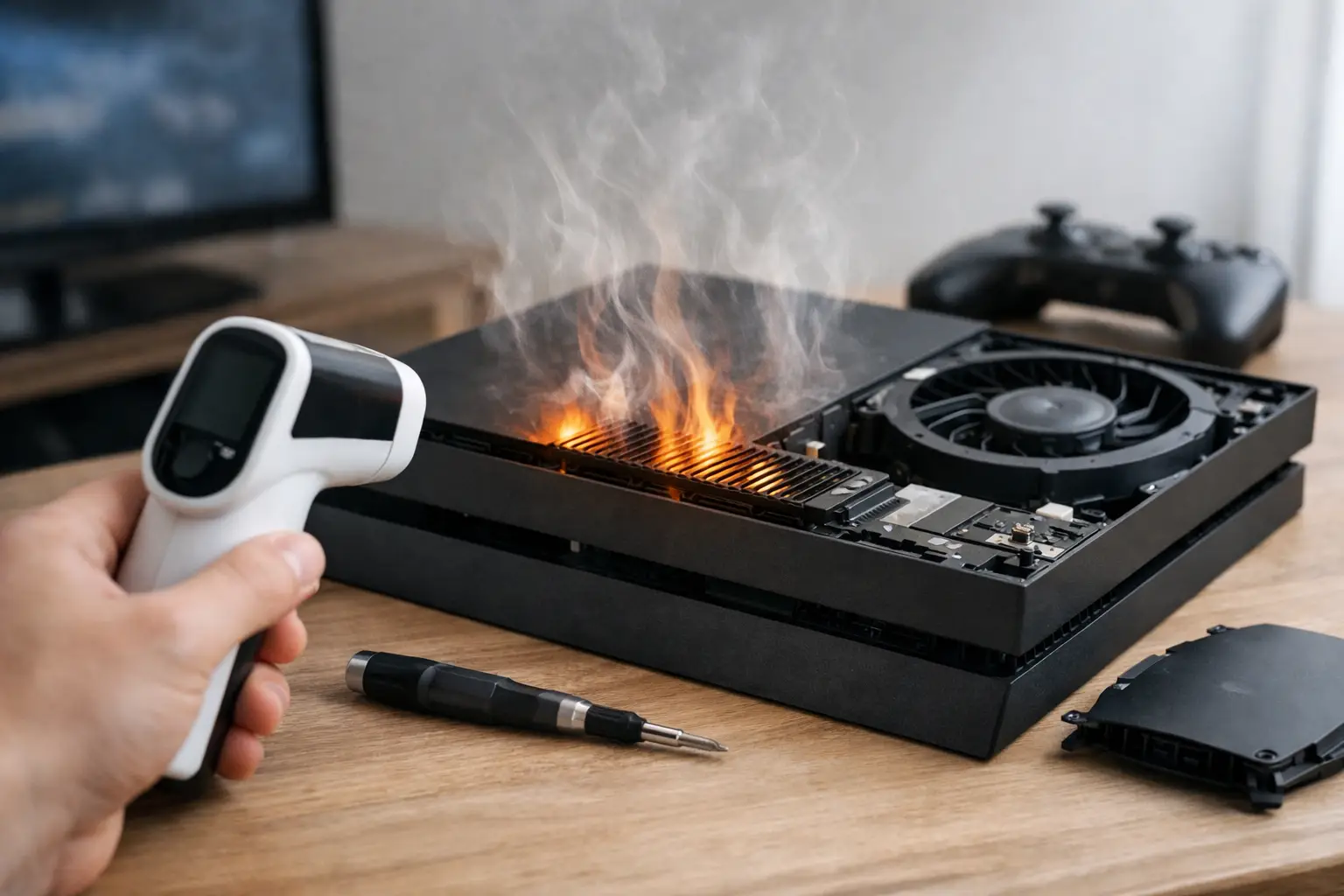
Your console should get warm during a long gaming session. It should not shut down, flash an overheating warning, sound like a small vacuum cleaner, or make you worry about the smell coming from the vents. Knowing how to diagnose console overheating can help you avoid a ruined game night and, more importantly, prevent heat from turning a manageable repair into board-level damage.
The goal is not to take your PS5 or Xbox apart at the first sign of heat. Start by separating normal operating warmth from a real cooling failure, then rule out the simple causes before deciding whether your console needs professional repair.
What Real Console Overheating Looks Like
A warm case alone is not proof of overheating. PS5, Xbox Series X, Xbox Series S, and older consoles all produce significant heat while running demanding games. Their cooling systems are designed to move that heat out through the vents, so warm air leaving the console is usually a good sign.
Actual overheating happens when the console cannot move heat away from critical components fast enough. That can be caused by blocked airflow, dust buildup, a weak fan, dried thermal material, a failing power supply, or an internal hardware fault.
Watch for a pattern, not one isolated moment. The clearest warning signs include:
- An on-screen overheating message or a sudden shutdown during gameplay
- A fan that runs unusually loud, changes speed constantly, or never seems to run
- Games that freeze, stutter, crash, or return to the home screen after the console gets hot
- Extremely hot air, a burning-plastic smell, clicking, grinding, or smoke
If you see smoke, smell burning electronics, or notice a bulging case, unplug the console from the wall immediately. Do not turn it back on to “see if it still works.” Those signs can point to an electrical failure, not just a ventilation issue.
How to Diagnose Console Overheating Step by Step
Start with placement and airflow
Before blaming the console, look at where it lives. A console pushed tight against a wall, packed into a closed TV cabinet, placed on carpet, or covered with clothing cannot pull in and exhaust air properly. Heat builds up quickly in those conditions, especially during longer sessions.
Turn the console off, let it cool, and move it to an open, hard, level surface. Keep its intake and exhaust vents clear with several inches of open space around them. If it sits in an entertainment center, leave the doors open while gaming or relocate it outside the cabinet for a test.
Then play the same game that caused the problem. If the warning disappears and the fan behavior returns to normal, airflow was likely the main issue. That is the best-case diagnosis, and it costs nothing to fix.
Check the vents without opening the console
Use a flashlight to inspect every visible vent. Dust mats, pet hair, and lint can collect at the intake areas and restrict cooling even when the outside of the console looks clean. This is especially common in homes with pets, carpet, or smokers.
With the console powered off and unplugged, use a soft brush or a low-power vacuum near the exterior vents. Do not force high-pressure compressed air deep into the console. It can push debris farther inside, overspin a fan, or move moisture from the can into sensitive areas.
A light exterior cleaning can help, but it does not always reach the dust trapped on the fan or heatsink. If the console has been used for years without cleaning and still overheats, internal buildup is a strong possibility.
Listen to the fan during a controlled test
After the console has cooled and the vents are clear, power it on and listen. A fan may be quiet on the home screen and become louder when a game starts. That is normal. What matters is whether the sound matches the heat problem.
A loud, steady fan with weak airflow from the exhaust can mean dust is blocking the heatsink. A grinding, rattling, or clicking sound may mean the fan bearing is failing. No fan sound at all during a demanding game can also be a problem, although some consoles are quiet enough that you may need to listen closely.
Do not put fingers, tools, or objects through the vents to check the fan. If the fan is damaged or obstructed, the safest next step is a professional inspection.
Rule out the game, update, or power issue
If overheating happens with one specific game but not others, test another demanding title for 20 to 30 minutes. A corrupted game file, a software bug, or an unfinished system update can cause crashes that look like heat-related shutdowns.
Make sure the console software is current and check that storage is not completely full. Then notice the timing. A console that fails only after an hour of high-performance gaming may have a cooling problem. A console that shuts down seconds after turning on, even when cold, may instead have a power supply, motherboard, or short-circuit issue.
External drives, charging stations, and third-party cooling accessories can complicate the picture too. Disconnect nonessential accessories and test the console with only its original power cable and a direct wall outlet. If a third-party accessory is generating heat or affecting power delivery, this test can expose it.
Common Causes of PS5 and Xbox Overheating
Dust is the most common cause, but it is not the only one. A clean-looking PS5 or Xbox can still have compacted debris inside the fan housing or heatsink fins. The air has nowhere to go, so temperatures rise even though the fan works harder.
A failed or weak cooling fan is another frequent culprit. You may hear grinding, intermittent spinning, or an abnormally loud fan before shutdowns begin. Replacing a fan can be straightforward for a trained technician, but the wrong part or an improperly seated connector can create a new problem.
Thermal paste, thermal pads, and liquid-metal cooling material also matter. These materials transfer heat from the processor to the cooling system. Over time, they can degrade, shift, or fail. This is not a casual DIY cleaning job, particularly on consoles that use liquid metal. One mistake can damage nearby components or cause a short.
Less common but more serious causes include a damaged heatsink, liquid damage, a failing power supply, or a motherboard fault. These issues often come with repeated shutdowns, no-power symptoms, burning smells, or overheating that continues after cleaning and improving ventilation.
When You Should Stop Testing and Get Repair Help
A single shutdown after your console was trapped in a hot cabinet is worth troubleshooting at home. Repeated overheating warnings are different. Every forced shutdown puts stress on the console and can corrupt game data or worsen an already failing component.
Stop using the system and arrange a diagnostic if it overheats in an open space, the fan makes mechanical noise, exterior cleaning does not help, or the console shuts down while still cool. Avoid repeatedly restarting it after a heat warning. That can turn a fan replacement or deep cleaning into a more expensive repair.
For gamers in Warner Robins and Middle Georgia, Reboot Hub can inspect PS5 and Xbox cooling issues, clean internal buildup, replace failed parts, and identify deeper board-level faults. Certified technicians focus on fast, fair repairs, with same-day service available for many issues and warranty-backed work when a repair is needed.
Protect Your Console After the Repair
Once the overheating issue is fixed, keep the console in open air and clean visible vents regularly. If you have pets or a dusty home, check those vents more often. A monthly wipe-down is easier than waiting for lint to become a solid barrier inside the system.
Skip the temptation to stack electronics on top of the console or seal it into a decorative cabinet. Your console does not need a complicated cooling setup. It needs clear airflow, a working fan, and attention when its behavior changes. Catch the warning early, and you can get back to playing instead of replacing a console that could have been repaired.